

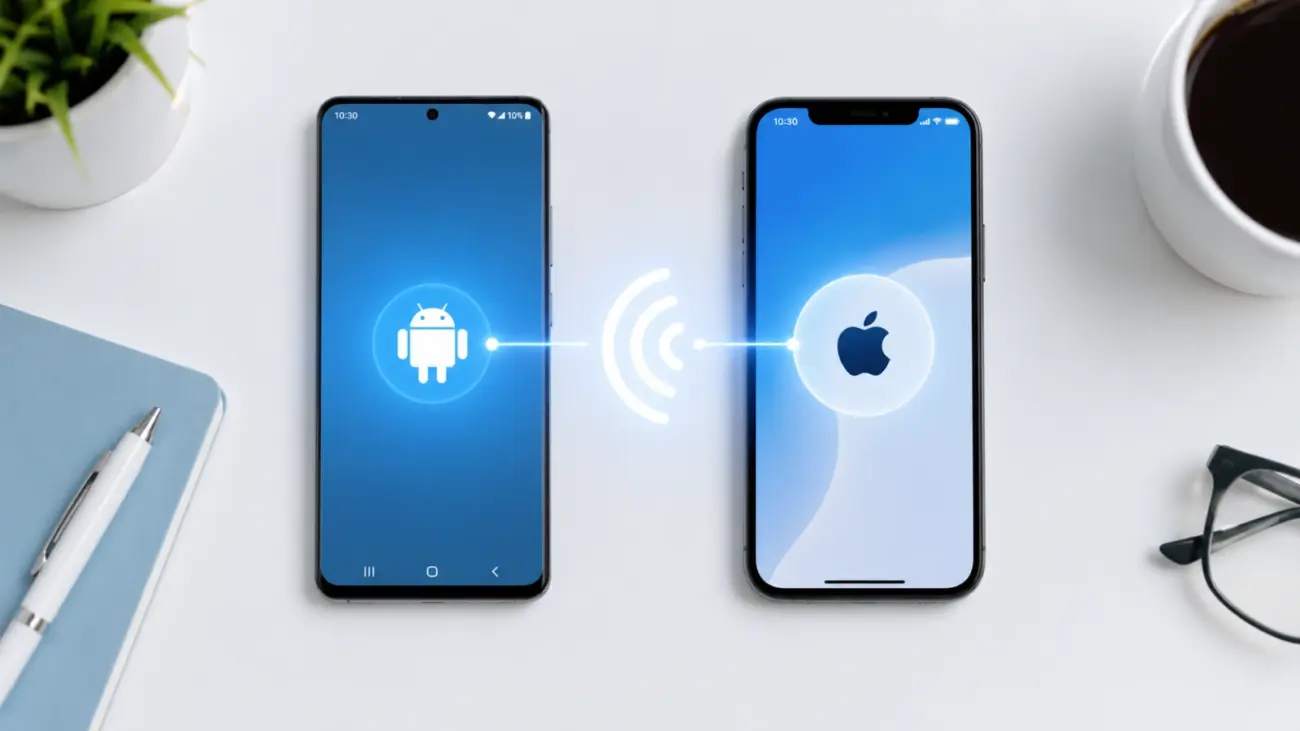
Switching from Android to iPhone in 2026 is the easiest it has ever been. Apple updated its official support page on May 11, 2026, confirming that Android 17 devices can now transfer data to an iPhone without downloading any app at all. The old friction points cables, permission errors, incomplete data migration, lost WhatsApp chats have been addressed. This guide covers the full wireless transfer process step by step, what actually transfers, what does not, and how to handle the tricky edge cases that most guides skip.
Whether you are moving from a Pixel, Samsung Galaxy, or any other Android phone running Android 17, this is the most complete and current method available right now.
Contents of How to Transfer from Android to iPhone 2026 wireless
What Changed in 2026 for Android to iPhone Transfers
Two significant changes arrived in 2026 that make the transfer process genuinely different from previous years.
First, Apple updated Move to iOS to support Android 17 devices natively. According to Apple’s official support documentation updated May 11, 2026, if your Android phone runs a compatible version of Android 17, you can transfer to iPhone without downloading the Move to iOS app. The process is handled through built-in system settings on the Android side, triggered by a QR code on the iPhone during initial setup.
Second, Google rebuilt its Android Switch tool from the ground up as part of Android 17. Paul Dunlop, Google’s Product Lead for Onboarding and Settings, confirmed on June 17, 2026, that Android Switch is now wireless-first and built directly into the Android 17 OS with no standalone app needed. The updated tool supports more data types than any previous version, including passwords, passkeys, Wi-Fi credentials, alarms, home screen layouts, wallpapers, and encrypted messages. While Android Switch is specifically designed for iPhone to Android transfers, understanding both directions helps you choose the right method for your situation.
Before You Start: Checklist
Skipping preparation is the most common reason transfers fail or miss data. Go through this checklist before touching either phone.
- Check your Android storage: Go to Settings and open Storage on your Android phone. Note the total used space. Your iPhone needs at least that much free space to receive everything.
- Update both phones: Make sure your Android is on Android 17 (or the latest available update) and your iPhone has the latest iOS version installed.
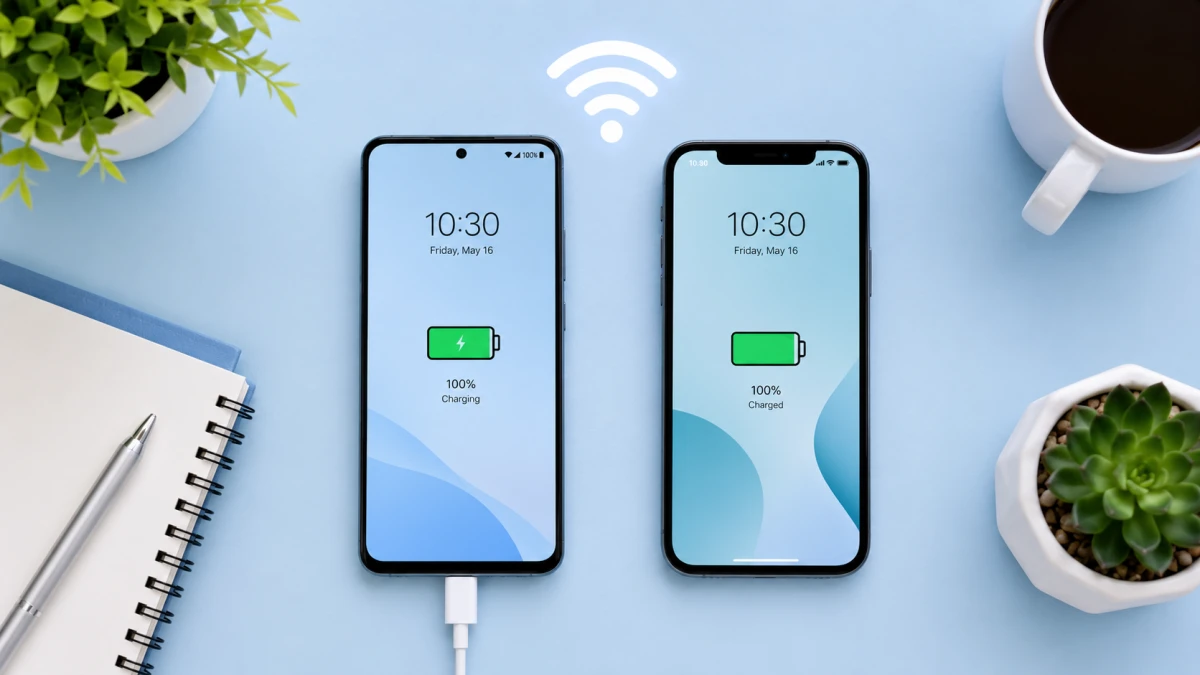
- Charge both devices: Both phones should be above 50 percent battery. Plug them into power during the transfer. The process can take anywhere from 20 minutes to several hours depending on data size.
- Connect to Wi-Fi: Wi-Fi must be on for both devices. The wireless method creates a direct device-to-device connection, but your iPhone will also need internet access to download apps in parallel.
- Back up your Android phone: Go to Settings, search for Backup, and run a full backup to Google Drive. This is your safety net in case anything goes wrong.
- Update Chrome on Android: If you want to transfer Chrome bookmarks, update Chrome to its latest version before starting.
- Check your iPhone setup status: The wireless transfer must happen during initial iPhone setup. If your iPhone is already set up, you need to erase it and start over. Go to Settings, then General, then Transfer or Reset iPhone, then Erase All Content and Settings.
- Disable iMessage on your Android number: If your phone number previously used iMessage on another iPhone, go to Apple’s deregister page and remove it, or iMessages sent to your number will not reach your new iPhone.
Method 1: Wireless Transfer Using Android 17 Built-In Feature (No App Required)
This is the new 2026 method for Android 17 devices. No app download needed on the Android side.
How to Transfer from Android to iPhone Wirelessly in 2026 (Android 17 Native Method)
Transfer all your data from an Android 17 phone to a new iPhone without downloading any app. This method uses Android 17’s built-in transfer feature and Apple’s QR-based pairing system, introduced in 2026.
Step 1 – Power on your iPhone and begin setup
Turn on your new iPhone. Follow the on-screen setup screens until you reach the Transfer Your Apps and Data page. Tap From Android. Your iPhone will display a QR code on screen.
Step 2 – Open Google Services on your Android phone
On your Android 17 phone, go to Settings and scroll down to Google Services. Tap All Services. Look for the option labeled Pair with iPhone or iPad and tap it. Then tap Copy Data.
Step 3 – Scan the QR code or enter the session ID manually
Your iPhone displays a QR code. Use your Android phone’s camera to scan it directly. If the camera scan does not work, tap Other Options on the iPhone and enter the session ID and pairing code shown on screen manually into your Android phone. Tap Continue to confirm the pairing.
Step 4 – Select what to transfer
Once paired, your iPhone displays the Transfer Data screen listing all available categories. Select the content you want to move: contacts, SMS messages, call history, photos, videos, photo albums, files and folders, accessibility settings, display settings, web bookmarks, mail accounts, WhatsApp messages and media, Voice Memos, and calendars. Tap Continue.
Step 5 – Wait for the transfer to complete
Place both phones on a flat surface, plugged in and close together. Do not use either device. Watch the progress bar on the iPhone screen, not the Android one. Even if your Android phone says the transfer is done, keep both phones connected until the iPhone loading bar finishes completely. A typical transfer for a phone with 20-30GB of data takes between 20 and 45 minutes over Wi-Fi.
Step 6 – Continue iPhone setup
Once the transfer completes, your iPhone will return to the setup flow. Sign in with your Apple ID or create one. Your transferred data including contacts, photos, and messages will already be on the device. Free apps that have iOS equivalents will begin downloading automatically from the App Store.
Method 2: Move to iOS App (Works on Android Versions Before Android 17)
If your Android phone does not run Android 17, the Move to iOS app by Apple remains the official method. It is free and available on Google Play. The process is nearly identical to Method 1 above, with one difference in how you begin: instead of going through Android Settings, you download Move to iOS from the Google Play Store and open it on your Android during iPhone setup when prompted.
The Move to iOS app creates a temporary private Wi-Fi network between the two phones for the transfer. Apple updated this app in May 2026 to also support USB-C cable connections for faster transfer speeds, which is covered in Method 3 below.
Method 3: Wired Transfer Using USB-C Cable (Fastest Option)
If you have a large photo and video library or want the transfer to complete as fast as possible, use a USB-C to USB-C cable to connect your Android phone directly to your iPhone (iPhone 15 and later use USB-C). Apple’s official support page confirms this option is available alongside both the native Android 17 method and the Move to iOS app.
The process is the same as Method 1 or Method 2, except when prompted you connect the cable between the two phones. You may see a popup on your Android phone asking you to adjust USB settings select File Transfer or MTP mode. The wired connection significantly reduces transfer time for large libraries.
What Actually Transfers: Full List
| Data Type | Transfers Wirelessly | Notes |
|---|---|---|
| Contacts | Yes | Full contact list including photos |
| SMS and MMS messages | Yes | Full message history and attachments |
| Call history | Yes | Including missed and outgoing calls |
| Photos and videos | Yes | Camera roll and albums transfer |
| Files and folders | Yes | Stored in local device storage |
| WhatsApp messages and media | Yes | Must select WhatsApp during transfer; one shot only |
| Web bookmarks (Chrome) | Yes | Update Chrome to latest version first |
| Mail accounts | Yes | Account credentials, not full email history |
| Calendar events | Yes | All calendar entries |
| Accessibility settings | Yes | Font size, display settings |
| Voice Memos | Yes | Audio recordings transfer |
| Free apps | Partial | iOS equivalents auto-download; no .apk files |
| Paid Android apps | No | Must re-purchase iOS versions |
| Safari bookmarks | No | Chrome bookmarks transfer; not Safari to Safari |
| iCloud photos | No | Transfers device photos only, not cloud-only content |
| Health and fitness data | No | Google Fit data does not transfer to Apple Health |
| In-app purchases | No | Contact app developers individually |
WhatsApp Transfer: The One Thing You Must Not Skip
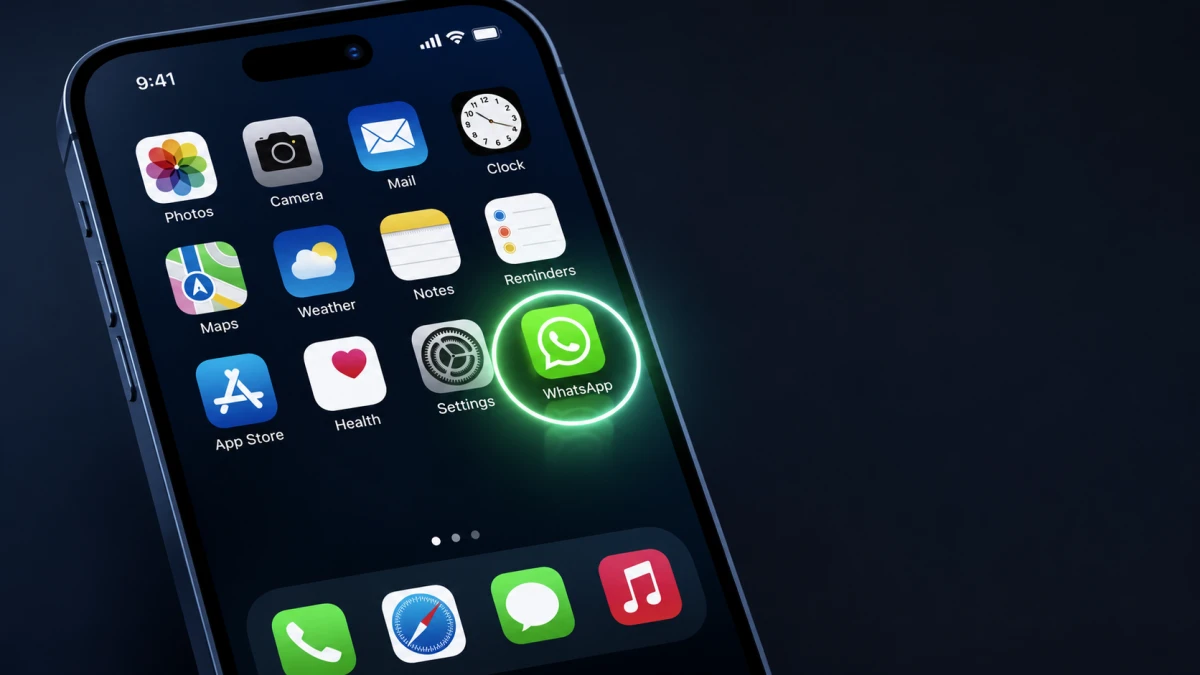
WhatsApp is the most common reason people lose data when switching from Android to iPhone. The rules are specific and there is no second chance once you miss the window.
WhatsApp on Android backs up to Google Drive. WhatsApp on iPhone backs up to iCloud. These two systems do not connect. The only way to transfer your complete WhatsApp chat history, including group chats, photos, and voice notes, is through the Move to iOS process or the Android 17 native transfer method, during initial iPhone setup.
When you reach the data selection screen, check the WhatsApp box. This opens WhatsApp on your Android phone, which prepares your data for transfer. Do not close either app. Once the process completes and you install WhatsApp on your iPhone and sign in with the same phone number, your full chat history will restore.
If you skip WhatsApp during this step, there is no standalone way to recover it without erasing your iPhone and starting the setup process again from scratch.
What to Do After the Transfer Completes
The transfer finishing does not mean you are done. These steps protect your data and complete the switch properly.
- Verify your photos: Open the Photos app and spot check several albums. Confirm the count roughly matches what was on your Android device before erasing anything.
- Check your messages: Open Messages on iPhone and confirm key conversations came through including attachments.
- Sign into streaming apps: Apps like Spotify, Netflix, and YouTube transfer to your iPhone but require you to log in again. Your subscriptions carry over since they are linked to your account, not the device.
- Set up Gmail on iPhone: If you skipped email during transfer, go to Settings, then Mail, then Accounts, then Add Account, and select Google. Your Gmail, Contacts, and Calendar will sync automatically.
- Set up your SIM or eSIM: For a physical SIM, remove it from your Android and insert it into your iPhone. For an eSIM, contact your carrier or follow the on-screen transfer prompts that appeared during setup.
- Enable iCloud Backup: Go to Settings, tap your name, select iCloud, then iCloud Backup, and toggle it on. This ensures your iPhone data stays protected going forward.
- Do not erase your Android immediately: Keep your Android phone for at least a week. Use it as a reference to confirm everything transferred correctly before wiping it.
Common Problems and How to Fix Them
Transfer stops or disconnects mid-way
Keep both phones on the same surface and plugged into power. If the transfer disconnects, do not restart the iPhone setup resume from where you left off if prompted, or start the transfer selection again. The process resumes rather than restarts in most cases.
Photos are missing after transfer
Photos stored only in Google Photos cloud (not on the device locally) will not transfer. Download the Google Photos app on your iPhone and sign in your full cloud library will appear without taking up local storage space.
WhatsApp is not showing chat history
This means WhatsApp was not selected during the transfer window. The only fix is to erase your iPhone, go back to factory setup, and repeat the full transfer process with WhatsApp selected this time.
The QR code scan does not work
On the iPhone setup screen, tap Other Options instead of scanning. Enter the session ID and pairing code displayed on the iPhone into your Android manually. This achieves the same result as the QR scan.
Android 17 native option is not appearing in Settings
Apple’s support documentation confirms that Android 17 native transfer support depends on your specific device manufacturer. Check with your device maker to confirm support. If it is not available, use the Move to iOS app from Google Play instead.
Do I need to download Move to iOS if my Android runs Android 17?
No, if your device runs a compatible version of Android 17. Apple confirmed in May 2026 that supported Android 17 phones can transfer to iPhone through built-in system settings without downloading the Move to iOS app. Go to Settings, then Google Services, then All Services, and look for Pair with iPhone or iPad. If this option is not available on your device, use the Move to iOS app from Google Play instead.
How long does the wireless Android to iPhone transfer take in 2026?
Most transfers take between 20 and 45 minutes over Wi-Fi for a typical phone with 20 to 30GB of data. Large photo and video libraries of 100GB or more can take two hours or longer. Using a USB-C cable between the two devices significantly reduces transfer time for large data sets.
Will my WhatsApp chats transfer from Android to iPhone?
Yes, but only during the initial iPhone setup transfer process. You must select WhatsApp on the data selection screen when using Move to iOS or the Android 17 native method. If you skip this step and complete iPhone setup first, there is no way to transfer WhatsApp without erasing the iPhone and starting setup again from scratch.
Can I transfer data from Android to iPhone if my iPhone is already set up?
Not using the wireless migration method. The Android to iPhone transfer only works during initial iPhone setup. If your iPhone is already configured, you must erase it by going to Settings, then General, then Transfer or Reset iPhone, then Erase All Content and Settings. After erasing, complete the transfer during the setup process. Back up any existing iPhone data to iCloud before erasing.
Do paid Android apps transfer to iPhone?
No. Paid Android apps and in-app purchases do not transfer to iPhone. Free apps with iOS equivalents download automatically from the App Store after the transfer. Paid apps must be re-purchased on the App Store. Android .apk files cannot run on iOS, so app lists serve only as suggestions for what to find on the App Store.
Related Guides
- Android 17 Review: Is Google’s Biggest AI Upgrade Worth Switching from iPhone?
- How to Stop Apps From Draining Your Phone Battery in 2026
- Why Buying an Unlocked Phone Is Almost Always Better in 2026
Discover more from iTechnoGlobe
Subscribe to get the latest posts sent to your email.
