

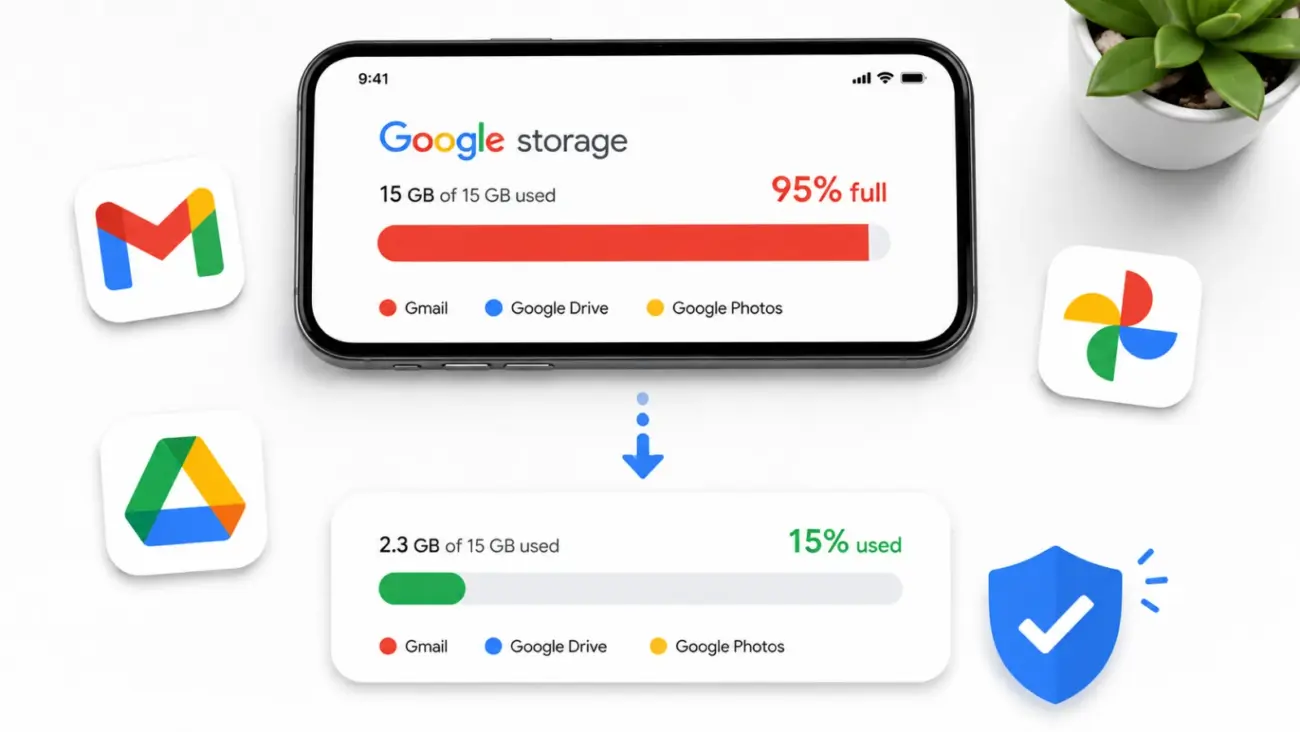
Your Google Account comes with 15 GB of free storage, and it disappears faster than most people expect. Gmail, Google Drive, and Google Photos all share that same 15 GB pool, which means a few large video backups or years of unopened promotional emails can quietly push you over the limit. When that happens, you cannot send or receive emails, your phone stops backing up photos, and Drive stops syncing files. I have helped dozens of readers recover several gigabytes in a single session without paying for Google One, and this guide walks you through exactly how to do it.
The cleanup process is straightforward once you know where to look. Most people focus only on Gmail, but Drive and Photos are often the bigger culprits. Work through each section below in order for the fastest results.
Table of Contents
Check What Is Actually Using Your Storage First
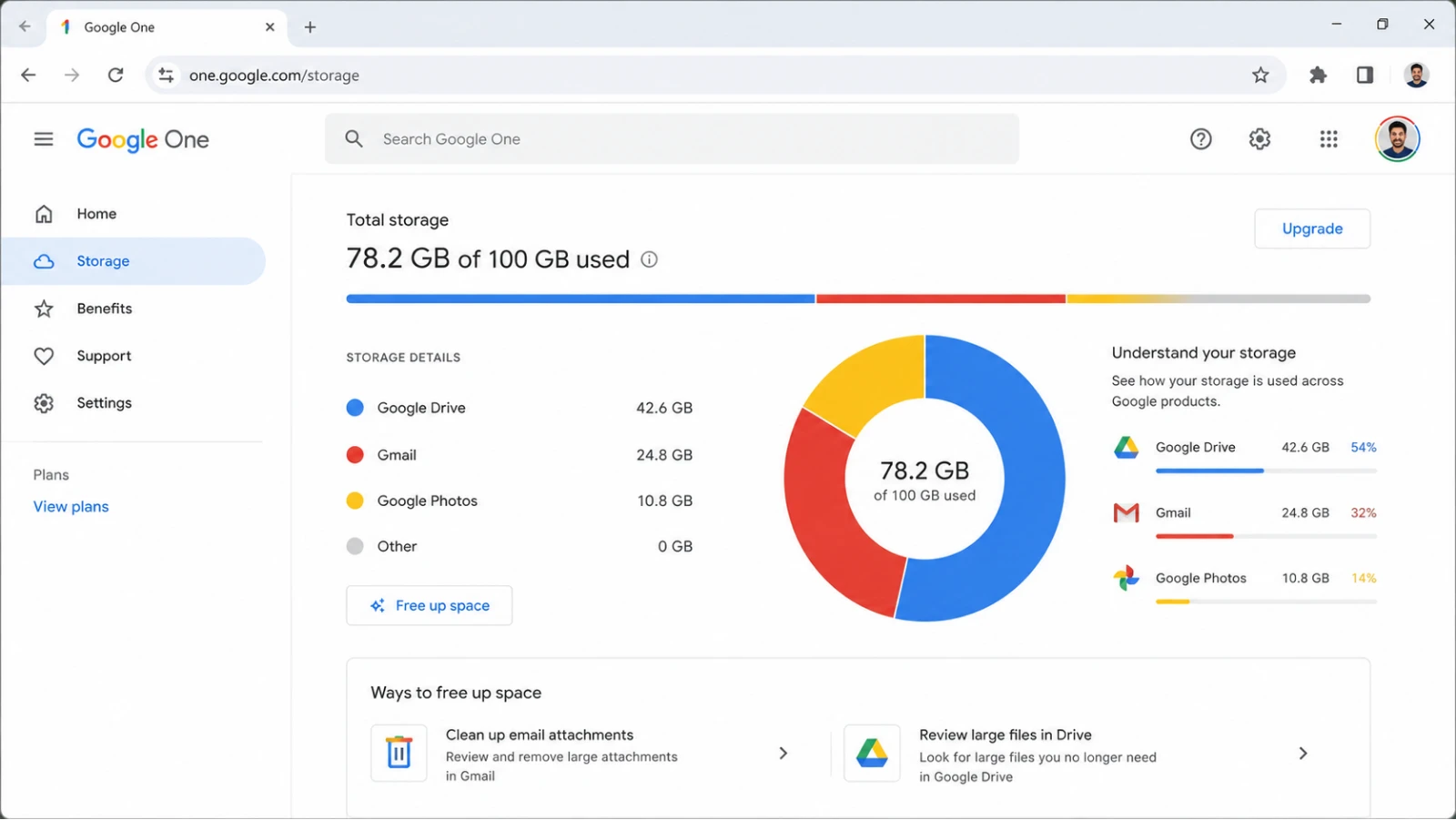
Before deleting anything, find out which service is consuming the most space. Guessing wastes time. Visit one.google.com/storage while signed into your Google Account. The page shows a clear breakdown of exactly how many gigabytes Gmail, Google Drive, and Google Photos are each using.
Google One’s Storage Manager goes one step further. It highlights specific categories such as large attachments in Gmail, large files in Drive, blurry photos, and old Android device backups. This breakdown tells you where to focus first. If Gmail shows 11 GB and Photos shows 2 GB, start with Gmail. If Photos shows 10 GB, go there first. Do not skip this step.
Clean Up Gmail – Delete Large Emails Fast
Gmail does not let you sort emails by size directly, but its search operators solve that instantly. These are commands you type into the Gmail search bar to filter emails by size, attachment type, date, and more.
Find and Delete Large Emails
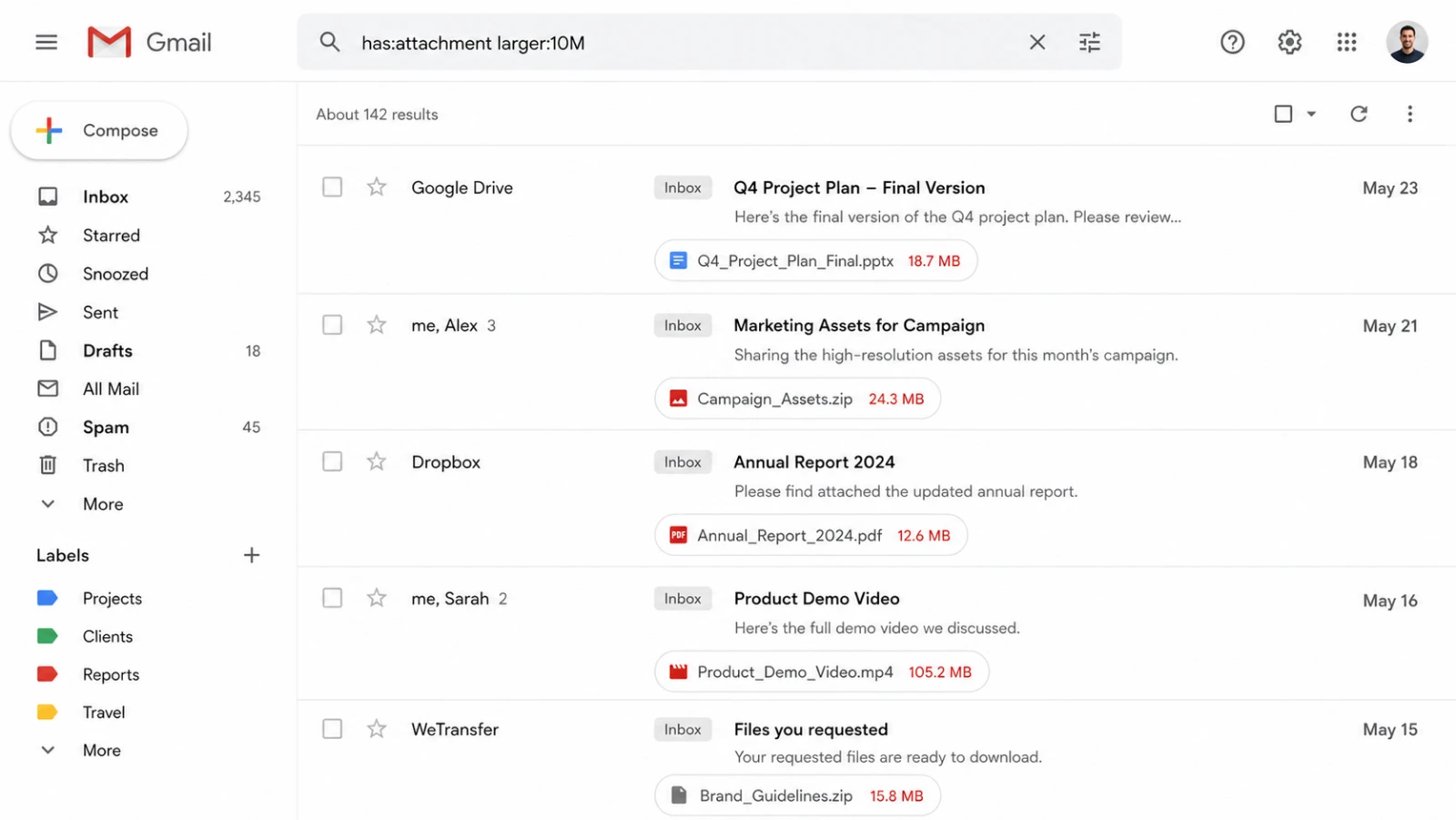
How to Find and Delete Large Emails in Gmail
Use Gmail search operators to locate emails with large attachments and delete them to free up significant storage space quickly.
Step 1: Search for Emails Larger Than 10 MB
Open Gmail and type larger:10M in the search bar and press Enter. This shows every email over 10 MB across all folders including Spam and Trash. These are your biggest storage hogs. Review the results and delete anything you no longer need.
Step 2: Find Emails With Attachments You Haven’t Opened
Type has:attachment larger:5M in the search bar. This surfaces emails with attachments over 5 MB. Combine it with older_than:1y to find old attachment-heavy emails you have not touched in over a year — type has:attachment larger:5M older_than:1y and delete in bulk.
Step 3: Bulk Delete Promotions and Social Emails
Click the Promotions tab in Gmail. Select all emails using the checkbox at the top left, then click the link that says “Select all conversations in Promotions” to grab everything, not just the visible page. Delete all. Repeat for the Social tab. These categories often hold thousands of emails you have never read.
Step 4: Empty Trash Immediately
This is the step most people miss. Deleted emails sit in the Trash folder for 30 days and still count against your storage quota during that period. Open the Trash folder, click Empty Trash Now, and confirm. Your storage counter updates within a few minutes. Do the same in Spam — open the Spam folder and click Delete All Spam Messages Now.
Using these search operators, most users recover between 1 GB and 5 GB from Gmail alone in under ten minutes, according to cleanup data shared by Aeralis in early 2026.
Clean Up Google Photos – Where Most Storage Hides
Google Photos is the single biggest storage consumer for most users. Years of automatic photo backup add up fast, especially if you have been backing up in Original Quality. Here is how to reclaim that space without losing your memories.
Switch to Storage Saver Quality
Google Photos offers two backup quality settings: Original Quality and Storage Saver. Original Quality stores photos and videos at full resolution and counts entirely against your 15 GB quota. Storage Saver compresses photos slightly – Google confirms there is no visible quality difference on phone screens — and dramatically reduces the space each file occupies.
To change your upload setting going forward, open Google Photos, tap your profile icon, go to Photos Settings > Backup > Backup Quality, and select Storage Saver.
Compress Your Existing Photos
Changing the setting only affects new uploads. To compress photos you have already backed up, you need to do this from a desktop browser. Open photos.google.com, go to Settings > Manage Storage > Recover Storage, click Learn More, check the agreement box confirming you understand this compression is irreversible, then click Compress Existing Photos and Videos. The process runs in the background over several hours. According to data from Android Authority, this compression can reduce existing photo storage by roughly 50% for users who previously backed up in Original Quality.
Delete Blurry Photos, Duplicates, and Screenshots
Google Photos has a built-in cleanup tool that identifies content worth removing. Open the app, tap Library > Utilities, and look for the review categories – blurry photos, screenshots, and similar items. Select and delete what you do not need, then empty the Photos Trash to reclaim the space immediately.
Review and Delete Large Videos
Videos consume far more storage than photos. In Google Photos, tap your profile icon, go to Manage Storage, and select Review and Delete. Sort by size and work through the largest video files first. If you want to keep a video, download it to your computer or an external drive before deleting it from Photos.
Clean Up Google Drive – Sort by Size and Delete Fast
Open Google Drive on desktop at drive.google.com. On the left sidebar, click Storage. Drive automatically sorts your files by size with the largest files shown first. This single view reveals exactly which files are consuming the most space.
What to Look For in Google Drive
Large video files, old ZIP archives, unused project folders, and forgotten software downloads are the usual storage hogs. Right-click any file and select Move to Trash. For multiple files, hold Shift or Ctrl while clicking to select several at once, then move them all to Trash together.
Also check for files shared with you. Open the Shared With Me section in Drive. Files others have shared with you do not count against your storage — but files you own that you have shared with others do. Sort your own files by size first before focusing on shared items.
Empty the Drive Trash
Just like Gmail, files in Google Drive’s Trash still count against your storage until permanently deleted. Click Trash in the left sidebar, then click Empty Trash in the top right. This step is essential — skipping it means your storage counter does not change even after deleting files.
Delete Old Android and WhatsApp Backups
This is the hidden storage killer that most guides miss. Old Android device backups and WhatsApp backups are stored in your Google Account and can consume several gigabytes without appearing in Drive, Gmail, or Photos.
To find and delete them, go to one.google.com/storage, scroll down to the storage breakdown, and look for Backups. Alternatively, open Google Drive on your phone, tap your profile icon, go to Manage Storage, and select Backups. You will see backups from every Android device you have ever used with this account. Delete backups from phones you no longer own. For WhatsApp backups, tap WhatsApp under the backups list and delete old backup files.
Use Google One Storage Manager for a Final Sweep
After manually cleaning Gmail, Photos, and Drive, run one final check using the Google One Storage Manager at one.google.com/storage/management. The tool scans your entire account and surfaces any remaining large files, suggested items to delete, and hidden storage usage you may have missed. It works across all three services simultaneously and is the fastest way to confirm you have recovered everything available.
The Storage Manager also shows a cleanup target if your account is over quota, with a direct path to deleting exactly what is needed to get back under the 15 GB limit.
How Long Before Your Storage Counter Updates
After deleting files and emptying Trash in Gmail, Drive, and Photos, Google typically updates your storage counter within a few minutes. In some cases it can take up to 24 hours to reflect the full change. If your counter seems stuck, wait a few hours and refresh the Google One storage page.
How to Prevent Storage from Filling Up Again
Cleaning up once is not enough if the same habits continue. A few simple changes keep your storage manageable long-term without paying for Google One:
- Set Google Photos backup quality to Storage Saver permanently
- Unsubscribe from promotional email lists instead of just deleting them
- Review and empty Gmail Spam and Trash folders monthly
- Delete large Drive files immediately after they are no longer needed
- Run a full cleanup using Google One Storage Manager every six months
Most users who follow this cleanup process recover between 3 GB and 8 GB in a single session — enough to stay on the free tier for another year or two without upgrading to Google One. The key is working through all three services and always emptying the Trash at the end of each step.
Related Guides
- How to Recover a Hacked Gmail or Google Account in 2026 12 Steps
- How to Remove Viruses From Android Phone Without Factory Reset in 2026
- How to Stop Apps From Draining Your Phone Battery in 2026
FAQs:
Does emptying Gmail Trash immediately free up storage?
Yes. Deleted emails in Gmail sit in the Trash folder and still count against your 15 GB quota for up to 30 days. Clicking Empty Trash Now permanently removes them and your storage counter updates within minutes. The same applies to Google Drive Trash and Google Photos Trash — all three need to be manually emptied to reclaim space.
Is compressing Google Photos to Storage Saver quality reversible?
No. Once you compress existing photos to Storage Saver quality using the Recover Storage option in Google Photos settings, the compression cannot be undone. Google confirms the quality difference is not visible on phone screens, but if you need original resolution files for printing or professional use, download them to local storage before compressing.
Do files shared with me in Google Drive count against my storage?
No. Files that other people share with you do not count against your personal 15 GB Google storage quota. Only files you own count toward your limit, including files you have shared with others. To free up Drive storage, focus on files you own rather than items in the Shared With Me section.
Where are old Android device backups stored and how do I delete them?
Old Android backups are stored in your Google Account under the Backups section, not inside Google Drive, Gmail, or Photos. To find and delete them, open Google Drive on your phone, tap your profile icon, go to Manage Storage, and select Backups. Delete backups from devices you no longer use. WhatsApp backups appear separately in the same Backups section and can be deleted there as well.
Discover more from iTechnoGlobe
Subscribe to get the latest posts sent to your email.
